Running XDP Programs on macOS: A Practical Guide Using Lima VMs
TL;DR
Can't run XDP programs on macOS? That's because XDP requires a Linux kernel. This guide shows you how to use Lima (a lightweight Linux VM) to develop and test XDP programs on macOS without the complexity of Docker.
Introduction
I recently tried following the official Aya documentation to run a simple XDP program using their provided template. The steps looked straightforward: generate the project, build it, and run it. However, attempting this on macOS quickly led to confusing failures.
This post is not a comprehensive tutorial, but rather a practical record of what failed, why it failed, and what finally worked. If you're trying to develop XDP programs on macOS, this might save you some debugging time.
Following the Aya XDP Documentation
The Aya docs assume a Linux environment. I followed the same steps on macOS using the official template and Rust tooling. The project built successfully, which initially made it feel like everything was working. The real problems only appeared when trying to run the program and attach XDP to a network interface.
What Went Wrong on macOS
Running the XDP program on macOS resulted in errors related to missing system calls and kernel interfaces. Functions like bpf(), perf_event_open(), and netlink-related symbols simply do not exist on macOS. The error messages were misleading and initially looked like dependency issues, but the root cause was much deeper.
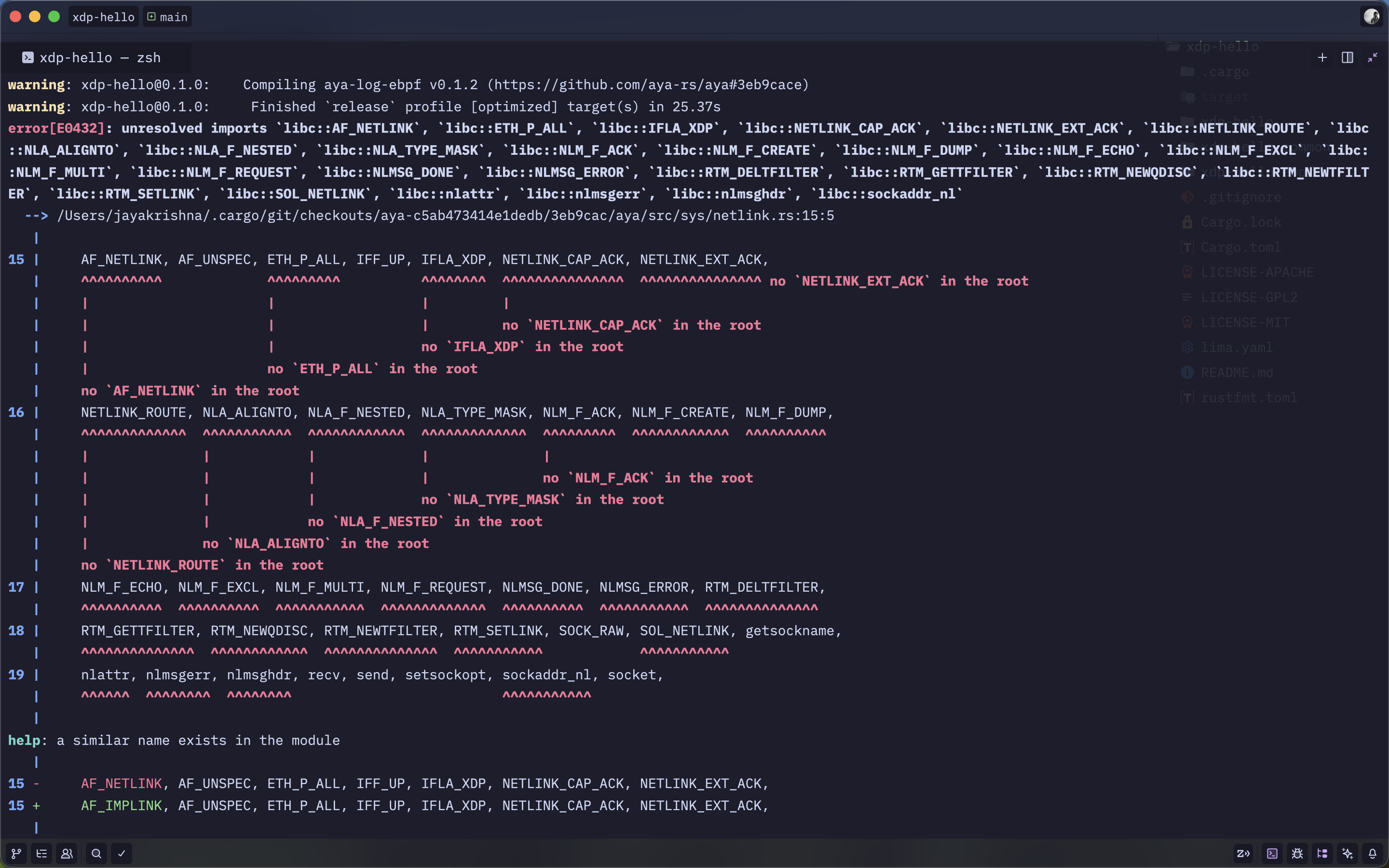
Why This Is a macOS Limitation (Not an Aya Issue)
XDP is a Linux kernel feature. macOS uses the Darwin (XNU) kernel, which does not implement the eBPF subsystem required for XDP. These missing syscalls and kernel hooks cannot be added from userspace. Even if the code compiles successfully, there is no kernel support to execute an XDP program on macOS.
In short: XDP requires Linux. No amount of userspace tooling can work around this fundamental limitation.
Why Docker Didn't Help
Docker was my next attempt. While Docker does run a Linux kernel under the hood on macOS (via a lightweight VM), its networking stack is heavily abstracted. Since XDP needs to attach at the network driver level and interact directly with network interfaces, Docker's virtualized networking made debugging harder rather than easier.
Docker works great for containerized applications, but for low-level kernel features like XDP, it introduces unnecessary complexity.
The Lima VM Solution
At this point, several friends suggested using Lima. The idea was simple: stop fighting the kernel limitations and just use a real Linux kernel. Lima provides a lightweight Linux VM on macOS and felt like a much better fit for kernel-level development than Docker.
Lima is specifically designed for developers who need a Linux environment on macOS, with sensible defaults and good integration with the host system.
Setting Up Lima for XDP Development
We didn't need a custom lima.yaml or complex provisioning. Starting a default Ubuntu Lima VM was sufficient. The macOS home directory is automatically mounted inside the VM, so the project was accessible without any extra setup.
Install Lima
# Install Lima using Homebrew
brew install lima
Start a Lima VM
# Start default Ubuntu VM
limactl start

# Enter the VM
lima
Install Dependencies Inside the Lima VM
Once inside the Lima VM, install all the required dependencies for XDP and Aya development:
# Update system packages
sudo apt update && sudo apt upgrade -y

# Install core build and eBPF dependencies
sudo apt install -y \
  build-essential \
  clang \
  llvm \
  lld \
  llvm-dev \
  llvm-runtime \
  libelf-dev \
  linux-headers-$(uname -r) \
  iproute2 \
  bpftool \
  pkg-config \
  git \
  curl

# Install Rust
curl --proto '=https' --tlsv1.2 -sSf https://sh.rustup.rs | sh -s -- -y
source "$HOME/.cargo/env"

# Install nightly toolchain + rust-src (required for eBPF)
rustup toolchain install nightly
rustup component add rust-src --toolchain nightly
rustup default nightly

# Install bpf-linker (required by Aya for linking eBPF programs)
cargo install bpf-linker
Building and Running the XDP Program
Navigate to your project directory inside the Lima VM. Since Lima mounts your macOS home directory by default, your project should be accessible at the same path.
Fix the Read-Only Filesystem Issue
Lima mounts your macOS directories as read-only by default. This means cargo build will fail with a permission error. The simplest solution is to copy your project into the VM's home directory where you have write permissions:
# Inside the Lima VM
mkdir -p ~/work
cp -r ~/documents/networking/xdp-hello ~/work/
cd ~/work/xdp-hello
Note: This uses my specific file path. Change ~/documents/networking/xdp-hello to match your project location
Alternatively, you can reconfigure Lima's mount settings (advanced).
Edit Lima config on macOS:
limactl edit ubuntu
Change the mounts section to:
mounts:
  - location: "~"
    writable: true
Then restart the VM:
limactl stop ubuntu
limactl start ubuntu
Now you can build without any permission issues.
Build the Project
Use this build command to compile the XDP program in kernel space:
cargo +nightly build -Z build-std=core --target bpfel-unknown-none
Now build the userspace program normally:
cargo build
Identify the Network Interface
Find the network interface where XDP will be attached:
ip link
In a Lima VM, this is typically eth0.
Run the XDP Program
Run the XDP program and explicitly attach it to the interface:
sudo RUST_LOG=info target/debug/xdp-hello --iface eth0
You should see output similar to:
Waiting for Ctrl-C...
This output indicates that the userspace loader is running and the XDP program is attached to the interface. However, the XDP program only executes when actual network traffic flows through the attached interface.
Generate Network Traffic
Open another terminal, enter the Lima VM, and generate some network traffic:
# Enter Lima VM in a new terminal
lima

# Generate traffic on eth0
ping -I eth0 8.8.8.8
When you ping, you'll see output in the main terminal: 
This output comes from the default Aya template code provided in the Aya documentation.
Key Takeaways
- XDP requires a Linux kernel - macOS (Darwin/XNU) does not support eBPF or XDP
- Compilation success doesn't mean runtime support - The code may compile, but kernel features must be present at runtime
- Docker adds unnecessary complexity - While Docker uses a Linux kernel, its networking abstraction makes XDP development harder
- Lima is the cleanest solution - It provides a real Linux kernel with minimal overhead and good macOS integration
- Network traffic is required - The XDP program only runs when packets flow through the attached interface
Resources
Closing Thoughts
The failures I encountered along the way were not caused by Aya or Rust, but by attempting to run a Linux kernel feature on a non-Linux kernel. Once the environment matched the assumptions made by the Aya documentation, everything behaved as expected.
Lima turned out to be the simplest and cleanest way to run XDP programs on macOS without unnecessary abstraction or complexity. If you're doing any kernel-level Linux development on macOS, Lima is worth considering over Docker or other virtualization solutions.
Questions or Issues?
If you run into any problems following this guide or have questions about XDP development, feel free to reach out to me. You can also check out the Aya community for more help.
Found this helpful? Share it with other developers struggling to run XDP programs on macOS.